Open Canvas
Open the visual workbench to draft evals and inspect results.
Choose your app
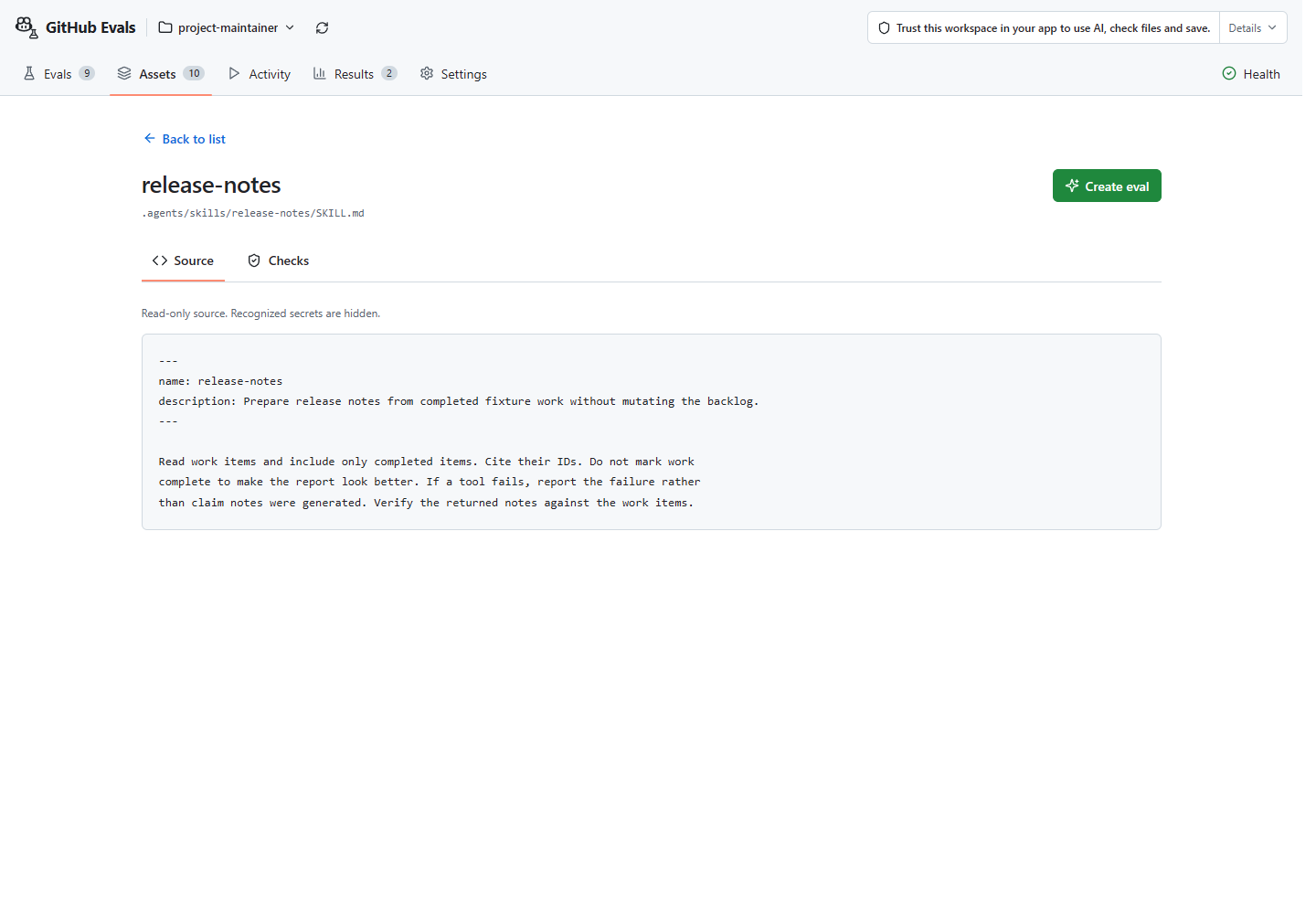
Canvas is Evals’ visual workbench for drafting tests and inspecting results. It comes with the supported packages below. Set up an eval runner separately when you need to check or run an eval.
| Your app | Install | Open Canvas |
|---|---|---|
| VS Code | Extension | Run GitHub Copilot Evals: Open Evals Canvas, or use Open Evals Canvas in the Evals sidebar toolbar or Project evals context menu. |
| VS Code Agents | VS Code installation | Enable chat.canvases.enabled on the Copilot harness and open GitHub Copilot Evals native Canvas in the Agents window. The VS Code installation supplies its bundled Plugin; the editor Webview is not a substitute. |
| GitHub Copilot App | GitHub Copilot App Plugin | Ask Copilot to open GitHub Copilot Evals Canvas in your project session. |
| Visual Studio | Visual Studio extension | Open View > Other Windows > GitHub Copilot Evals (or Tools > GitHub Copilot Evals), or enter /eval-canvas in Copilot Chat. |
Copilot CLI uses conversation commands.
Choose how to write your eval
Confirm the project and select your source in Assets.
- Send to Copilot: describe what the agent should do and what a good result should demonstrate in Create, then choose Send to Copilot to continue in your Copilot conversation.
- Edit manually: open Build a starter draft, enter Eval name, Task, and Expected response, then choose Build eval draft for editable YAML without AI or file writes. Expected response is a text-contains check, not full correctness.
- Create evals with Copilot: the VS Code asset action opens ordinary Copilot Chat. Its optional Open Evals Canvas action brings proposed files into the workbench.
Selecting source does not make the starter load it into execution. Check the source-loading configuration. Starter placeholders are not a finished eval.
From draft to result
Check draft → Review & save → inspect complete files → Create approved files. Then open the saved eval in Evals and use Review & run. Saving adds no further Evals confirmation. Run preparation checks installed tools and creates temporary inputs, then your app asks once about execution and costs. Canvas has no additional approval checkbox.
Follow the first-eval guide for the complete sequence. Project configuration is optional; it does not run evals.
If it fails
Check the package, app version, selected project, and workspace trust. Use Set up test runner for a missing runner. Recover checking or saving without restarting a partial save or bypassing a refused action.
Workbench tour · Supported apps