
Run your first eval
Test one real task and learn from your first saved result.
Choose your app
No project ready? Use a sample.
Open your project
Native VS Code controls need the extension. Plugin-only editor setup usesconversation requests and your app's supported save/run tools.
Prepare the optional Project Maintainer sample, or open the project containing your own skill, delegated agent or supported tool source.
Start Copilot CLI in your source project. For the prepared sample, choose .agents\skills\release-notes\SKILL.md.
Terminal command
copilotIn the local VS Code editor, run GitHub Copilot Evals: Open Evals Canvas, or use Open Evals Canvas in the Evals sidebar toolbar or Project evals context menu. In GitHub Copilot App, ask to open GitHub Copilot Evals Canvas in your project session. In Agents, use the Evals extension or standalone Plugin; stop if its selected harness cannot open Canvas. Confirm the folder and select the source in Assets.
In the local VS Code editor, run GitHub Copilot Evals: Open Evals Canvas, or use Open Evals Canvas in the Evals sidebar toolbar or Project evals context menu. In GitHub Copilot App, ask to open GitHub Copilot Evals Canvas in your project session. In Agents, use the Evals extension or standalone Plugin; stop if its selected harness cannot open Canvas. Confirm the folder and select the source in Assets.
In the local VS Code editor, run GitHub Copilot Evals: Open Evals Canvas, or use Open Evals Canvas in the Evals sidebar toolbar or Project evals context menu. In GitHub Copilot App, ask to open GitHub Copilot Evals Canvas in your project session. In Agents, use the Evals extension or standalone Plugin; stop if its selected harness cannot open Canvas. Confirm the folder and select the source in Assets.
In Visual Studio, open your local solution or folder, then open View > Other Windows > GitHub Copilot Evals (or Tools > GitHub Copilot Evals, or enter /eval-canvas in Copilot Chat). Confirm the folder and select the source in Assets.
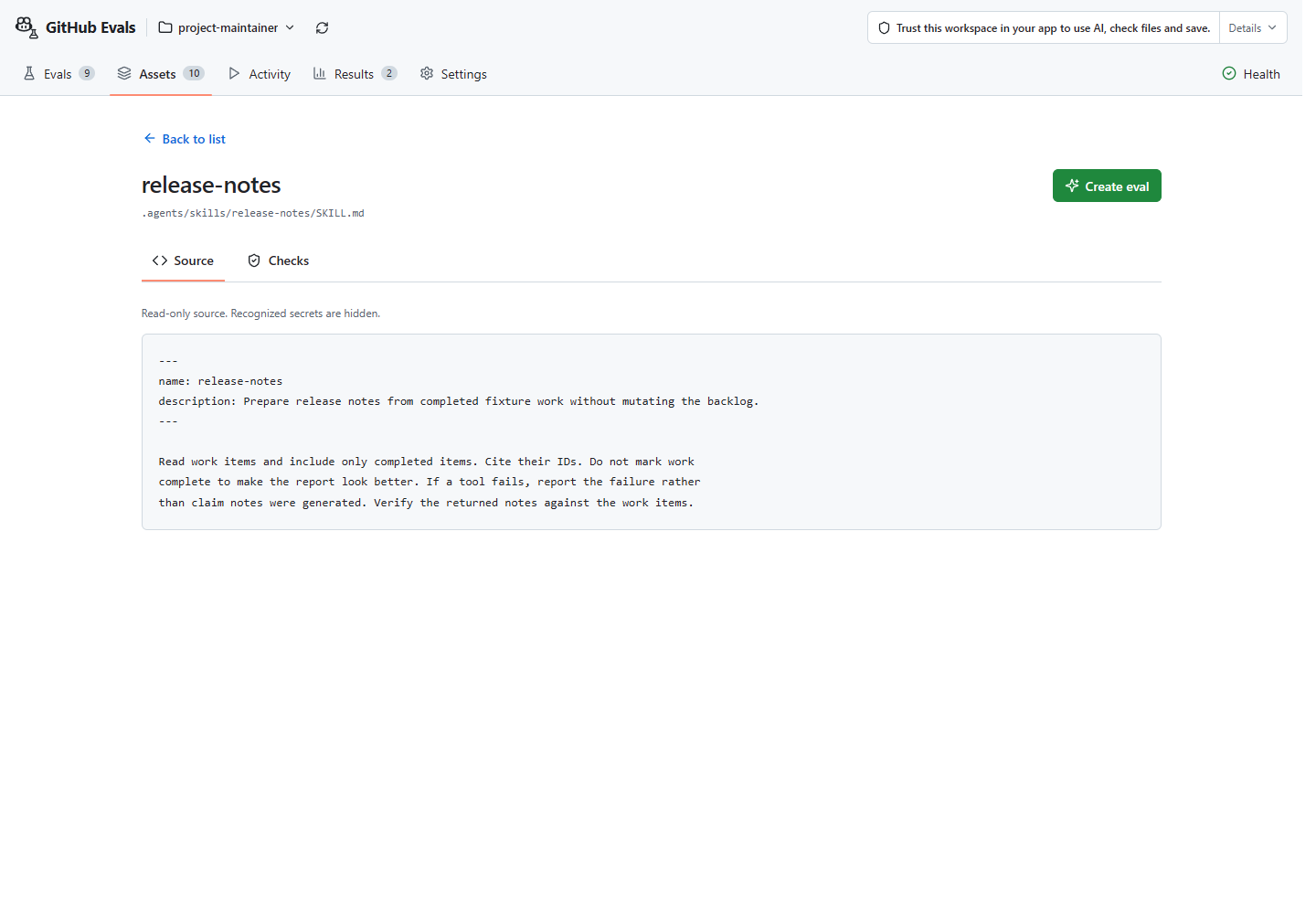
The source you test is called an asset in the UI. Choose its actual SKILL.md, agent definition or supported tool configuration. Installing Evals does not discover every installed Plugin as local source. The screenshot shows a prepared sample, not a file already in your project.
Describe success
Choose a realistic task, its inputs, the expected result and what must not happen.
Enter /eval create in the packaged Copilot CLI / GitHub Copilot App Plugin and select the source. If you supplied a task based on that source, continue with Copilot. Otherwise, fill in the task and expected-result form. Review the expectations before drafting; no prompt text file is required.
With repository skills only, ask Create in your own words.
Open Create. Describe the task and choose Send to Copilot, or choose Edit manually to enter Eval name, Task and Expected response. Expected response in the starter means text the answer must contain; it is not a complete correctness check. The VS Code Create evals with Copilot action uses ordinary Copilot Chat instead.
Open Create. Describe the task and choose Send to Copilot, or choose Edit manually to enter Eval name, Task and Expected response. Expected response in the starter means text the answer must contain; it is not a complete correctness check. The VS Code Create evals with Copilot action uses ordinary Copilot Chat instead.
Open Create. Describe the task and choose Send to Copilot, or choose Edit manually to enter Eval name, Task and Expected response. Expected response in the starter means text the answer must contain; it is not a complete correctness check. The VS Code Create evals with Copilot action uses ordinary Copilot Chat instead.
Open Create in Evals Canvas and enter Eval name, Task and Expected response, or enter /eval-create in Visual Studio Copilot Chat to draft from the selected asset. Expected response in the starter means text the answer must contain; it is not a complete correctness check.
For release notes: include completed backlog work and exclude unfinished work. Use requirements, not the AI's answer, to decide what is correct. A check accepts or rejects part of the result. Keep answer keys out of inputs given to the AI.
Build or ask Copilot
Turn the task into proposed eval and input files. Read the complete draft before saving.
The Create command continues in your conversation, with or without a form; no second pasted prompt is needed. Review the checks against the source requirements, the settings that load your source, and the proposed files.
Choose Build eval draft for editable YAML without AI or file writes, or Send to Copilot to continue in chat. Inspect all file tabs. Starter placeholders are guidance, not finished requirements. Opening a proposal in Canvas does not check, save or run it.
Choose Build eval draft for editable YAML without AI or file writes, or Send to Copilot to continue in chat. Inspect all file tabs. Starter placeholders are guidance, not finished requirements. Opening a proposal in Canvas does not check, save or run it.
Choose Build eval draft for editable YAML without AI or file writes, or Send to Copilot to continue in chat. Inspect all file tabs. Starter placeholders are guidance, not finished requirements. Opening a proposal in Canvas does not check, save or run it.
Choose Build eval draft in Evals Canvas for editable YAML without AI or file writes, or continue with /eval-create in Visual Studio Copilot Chat. Inspect all file tabs. Starter placeholders are guidance, not finished requirements.
Copilot drafting can use paid quota. A starter template does not prove that your skill, agent or tool was used correctly.
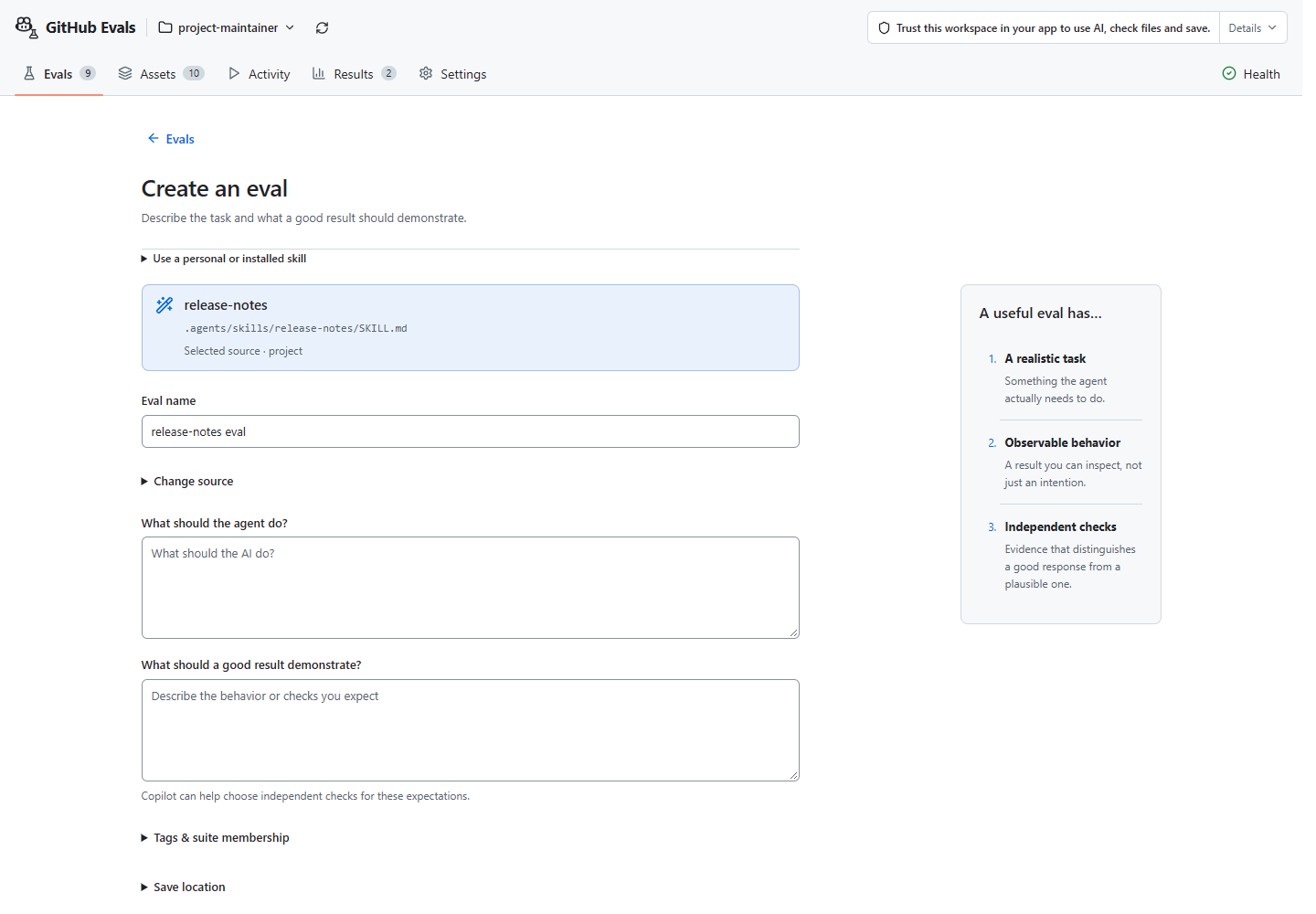
The no-AI starter does not load your source automatically. Configure the real skill directory, agent file with an explicit delegation request, or supported MCP server. Check both that Copilot used it and that the answer is correct. Review every path and check; note requirements you cannot measure. The screenshot shows an unsubmitted form, not a finished release-note eval.
Check and save
Check the proposed files, inspect their complete content and paths, then save them.
Read the validation diagnostics and complete file proposal, then save through the app's normal tool permissions. If checking is unavailable, review that limitation before saving. Existing files are not overwritten.
Choose Check draft, then Review & save, then Create approved files (or save in chat and choose View saved eval in Canvas). Checking needs project trust and synchronized edits; saving also needs a successful current check. Use VS Code workspace trust. After editing a checked draft or fixing a check failure, use Retry edited draft before checking again.
Choose Check draft, then Review & save, then Create approved files (or save in chat and choose View saved eval in Canvas). Checking needs project trust and synchronized edits; saving also needs a successful current check. Use VS Code workspace trust. After editing a checked draft or fixing a check failure, use Retry edited draft before checking again.
Choose Check draft, then Review & save, then Create approved files (or save in chat and choose View saved eval in Canvas). Checking needs project trust and synchronized edits; saving also needs a successful current check. Use VS Code workspace trust. After editing a checked draft or fixing a check failure, use Retry edited draft before checking again.
In Evals Canvas, choose Check draft, then Review & save, then Create approved files. Checking requires a trusted open solution or folder with no unsaved editor changes; saving also requires a passing check.
Saving does not approve execution. Resolve partial saves using the original request, proposal and recovery details before Run.
Checking files does not run the eval. The Evals save service checks files before saving. Saves use normal app permissions without another Evals confirmation. Run checks execution support separately. With only your app's file tools, files are saved but not checked by the runner. Never bypass a failed or partial Evals save.
Approve the run
Review the saved eval's model, tools, inputs and limits, then approve execution separately.
Use /eval run in the packaged Copilot CLI / GitHub Copilot App Plugin, or ask Run for the saved eval's plan. Review it and approve running that plan.
Open the saved eval in Evals and choose Review & run. This starts disclosed local preparation, then asks once about the exact run and costs in the App conversation or a VS Code dialog. For later review, choose Queue Eval, then select the pending job in Activity. There is no Canvas approval checkbox. Resolve setup or authentication errors before retrying.
Open the saved eval in Evals and choose Review & run. This starts disclosed local preparation, then asks once about the exact run and costs in the App conversation or a VS Code dialog. For later review, choose Queue Eval, then select the pending job in Activity. There is no Canvas approval checkbox. Resolve setup or authentication errors before retrying.
Open the saved eval in Evals and choose Review & run. This starts disclosed local preparation, then asks once about the exact run and costs in the App conversation or a VS Code dialog. For later review, choose Queue Eval, then select the pending job in Activity. There is no Canvas approval checkbox. Resolve setup or authentication errors before retrying.
Open the saved eval in Evals Canvas and choose Review & run. After disclosed local preparation, review and approve the exact run and costs once in the native Visual Studio confirmation dialog.
Paid models can cost money; total cost and internal model requests are not capped. The temporary folder is not a sandbox. Stop if a required limit or approval is unavailable.
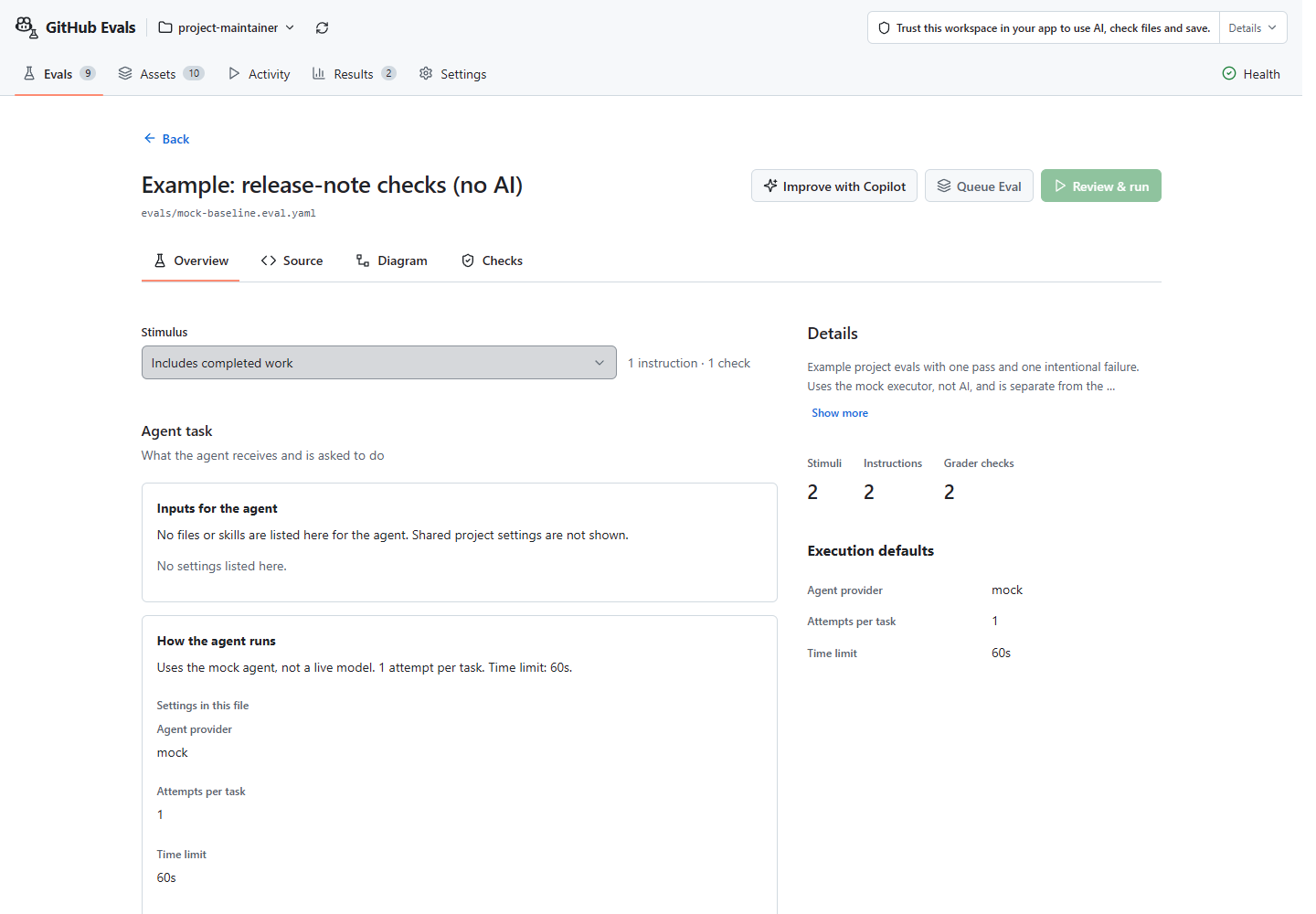
Model runs need supported sign-in and model access. Agent and MCP runs need full Copilot CLI, not just the SDK runtime. Use Set up test runner when needed; Chat sign-in alone does not set up the runner. The screenshot shows a saved eval before approval. Stop affects this run only.
Read the result
Open your saved result. Compare the expected answer, actual answer and each check.
Select the saved result and ask Review to explain failures, errors and missing evidence without editing or rerunning.
Open Results and select your run. Read the answer, not just the pass count.
Open Results and select your run. Read the answer, not just the pass count.
Open Results and select your run. Read the answer, not just the pass count.
Open Results in Evals Canvas (or Tools > GitHub Copilot Evals: Open latest run in Evals Canvas, or /eval-results in Copilot Chat) and read the answer alongside each check.
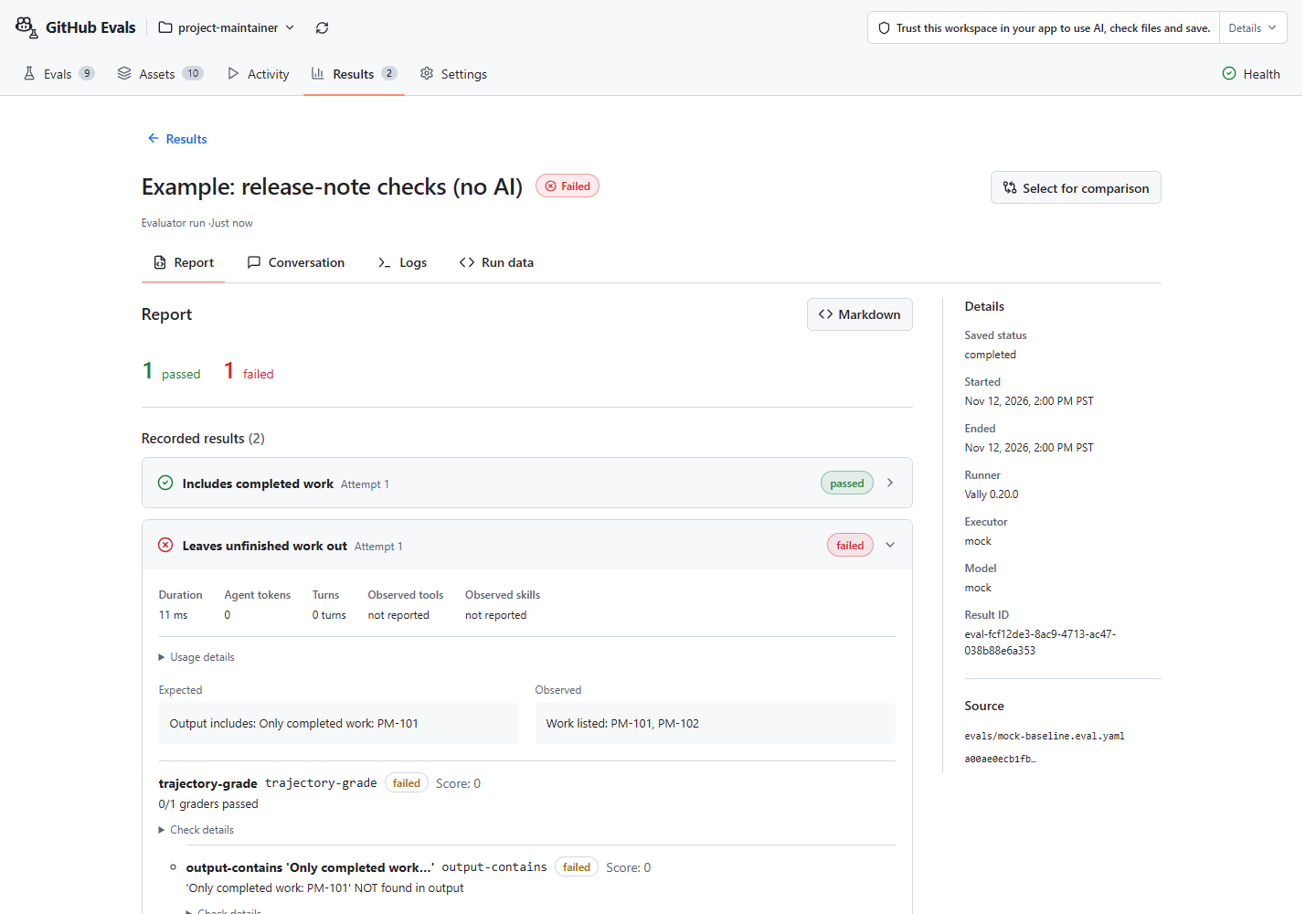
The screenshot shows a saved sample made without AI; it does not show a skill run. If a wrong answer fails, investigate the source. If it passes, investigate the check. Setup errors and missing evidence are not passes. Keep this first result: one pass cannot establish reliability. Your first eval ends here.
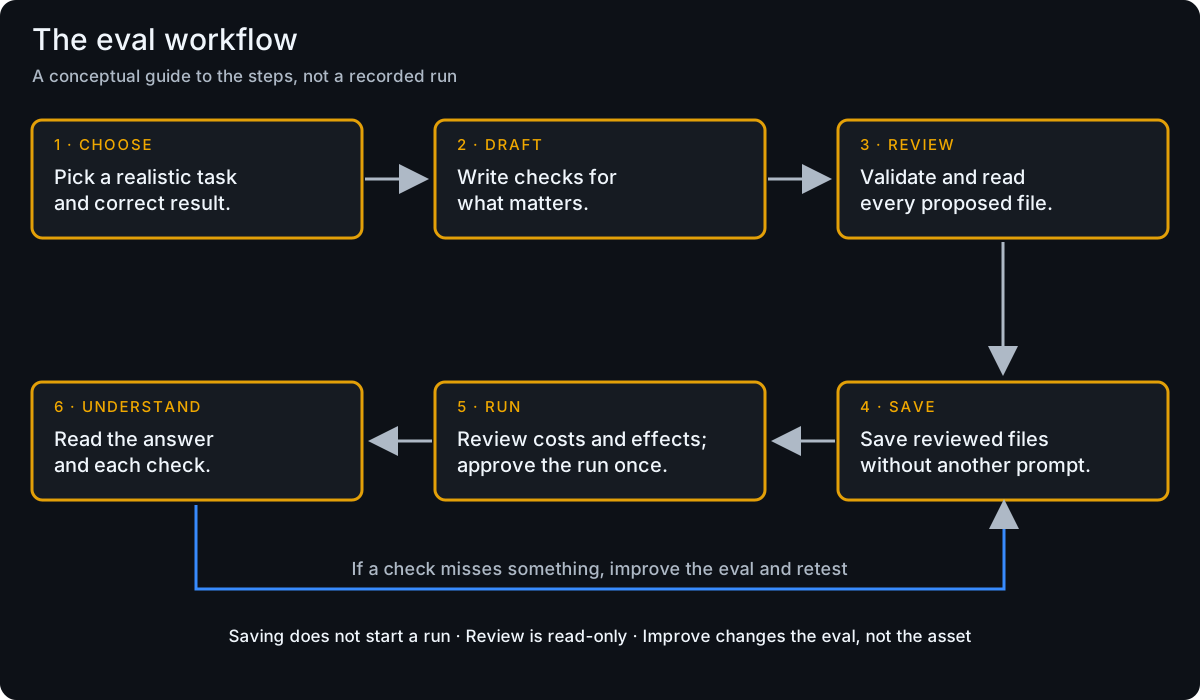
After your first result
Project configuration is optional. Use Init / Setup to choose eval folders and suites.
Change your asset and compare with unchanged task, inputs, model and checks. Review edits; approve retests separately.
Improve a check if it accepted a wrong answer. Set up CI after the eval is useful locally.