
Create
Turn a real task and a clear expected outcome into an eval.
Choose your app
 Create in Copilot CLI
Choose a real asset source and describe the task, inputs and expected result.
Terminal command
copilot -p "Use the create skill from the eval Plugin. Create an eval for this asset using its documented requirements. Use a realistic task and inputs. Check the answer against those requirements, not the AI's opinion of its work. Show all proposed files, which answers the checks accept or reject, and unchecked requirements. Do not save or run it."- Open the right place
Start Copilot in the project containing your source and evals, with the Evals Plugin installed.
Set up Copilot CLI - Start Create
Add the selected file's path to the command or prompt before sending it.
- Review what happens next
Read every complete file and path before saving under normal app permissions, without another Evals confirmation. If runner checks are unavailable, report files as saved but not checked by the runner. Never bypass a failed or partial Evals save. Saving does not approve execution.
Stop if a required check or approval is unavailable. Do not bypass a refusal with terminal commands.
Follow the first-eval guide Create in VS Code
Choose a real asset source and describe the task, inputs and expected result.
Copilot Chat skill request
Use the create skill from the eval Plugin. Create an eval for this asset using its documented requirements.
Use a realistic task and inputs. Check the answer against those requirements, not the AI's opinion of its work.
Show all proposed files, which answers the checks accept or reject, and unchecked requirements. Do not save or run it.- Open the right place
For native controls, use the extension and run GitHub Copilot Evals: Open Evals Canvas in your local project. It includes the Plugin.
Set up VS Code - Start Create
In Create, enter Task and Expected response or ask Copilot for the full proposal. Check draft before Review & save.
- Review what happens next
Read every complete file and path before saving under normal app permissions, without another Evals confirmation. If runner checks are unavailable, report files as saved but not checked by the runner. Never bypass a failed or partial Evals save. Saving does not approve execution.
Stop if a required check or approval is unavailable. Do not bypass a refusal with terminal commands.
Follow the first-eval guide Create in GitHub Copilot App
Choose a real asset source and describe the task, inputs and expected result.
Prompt to paste into the Canvas Copilot conversation
Create an eval for this asset using its documented requirements.
Use a realistic task and inputs. Check the answer against those requirements, not the AI's opinion of its work.
Show all proposed files, which answers the checks accept or reject, and unchecked requirements. Do not save or run it.- Open the right place
Open Evals Canvas in the intended GitHub Copilot App project session; confirm its selected folder.
Set up GitHub Copilot App - Start Create
In Create, enter Task and Expected response or ask Copilot for the full proposal. Check draft before Review & save.
- Review what happens next
Read every complete file and path before saving under normal app permissions, without another Evals confirmation. If runner checks are unavailable, report files as saved but not checked by the runner. Never bypass a failed or partial Evals save. Saving does not approve execution.
Stop if a required check or approval is unavailable. Do not bypass a refusal with terminal commands.
Follow the first-eval guideCreate in VS Code Agents
Choose a real asset source and describe the task, inputs and expected result.
Prompt to paste into your VS Code Agents Copilot conversation
Create an eval for this asset using its documented requirements.
Use a realistic task and inputs. Check the answer against those requirements, not the AI's opinion of its work.
Show all proposed files, which answers the checks accept or reject, and unchecked requirements. Do not save or run it.- Open the right place
Open your prepared project in VS Code Agents with its supported Plugin/Canvas setup.
Set up VS Code Agents - Start Create
Select the asset source and send the request in VS Code Agents's Copilot conversation; use that app's approval controls.
- Review what happens next
Read every complete file and path before saving under normal app permissions, without another Evals confirmation. If runner checks are unavailable, report files as saved but not checked by the runner. Never bypass a failed or partial Evals save. Saving does not approve execution.
Stop if a required check or approval is unavailable. Do not bypass a refusal with terminal commands.
Follow the first-eval guide Create in Visual Studio
Choose a real asset source and describe the task, inputs and expected result.
Visual Studio Copilot Chat command
/eval-create Create an eval for this asset using its documented requirements. Use a realistic task and inputs. Check the answer against those requirements, not the AI's opinion of its work. Show all proposed files, which answers the checks accept or reject, and unchecked requirements. Do not save or run it.- Open the right place
Open your local solution or folder in Visual Studio and open View > Other Windows > GitHub Copilot Evals (or enter /eval-canvas in Copilot Chat).
Set up Visual Studio - Start Create
In Create, enter Task and Expected response or ask Copilot for the full proposal. Check draft before Review & save.
- Review what happens next
Read every complete file and path before saving under normal app permissions, without another Evals confirmation. If runner checks are unavailable, report files as saved but not checked by the runner. Never bypass a failed or partial Evals save. Saving does not approve execution.
Stop if a required check or approval is unavailable. Do not bypass a refusal with terminal commands.
Follow the first-eval guide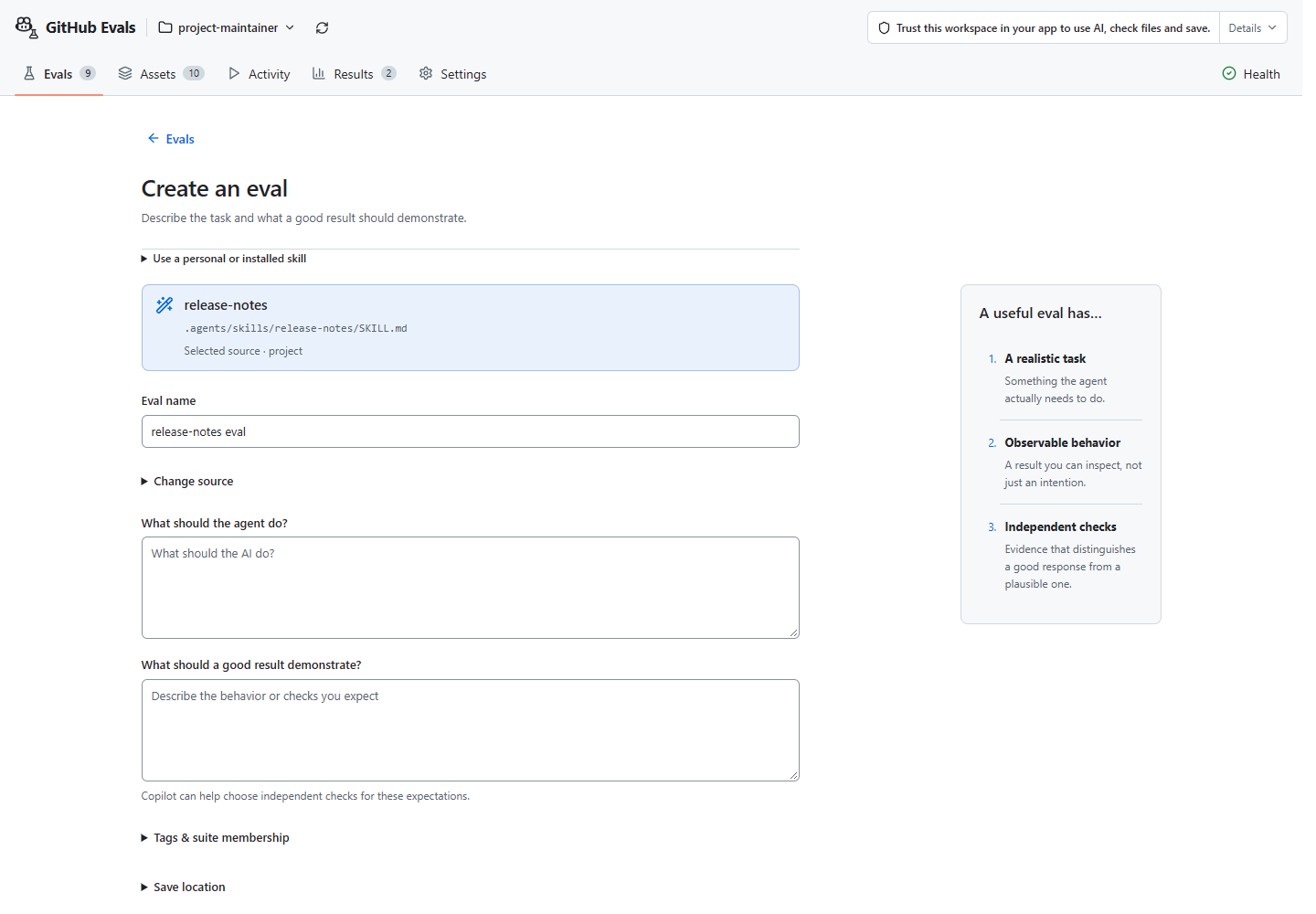
Choose your app to see how to start. Start with the first-eval guide for the general steps.
Choose what to evaluate
Select your real skill, delegated agent, or supported tool source. Check its path when names repeat. Enter another asset path… handles source outside the discovered list; changing projects needs approval.
Define a useful check
Use requirements and repository scoring guidance, not the AI’s answer or an example threshold. Try a correct answer, a valid alternative, a plausible mistake, and an empty answer. Record unchecked requirements.
For skills, consider a request that should not trigger the skill. Using the skill does not mean its answer is correct.
Copilot asks about missing requirements. Canvas’s Send to Copilot continues in chat and retains a read-only snapshot. After saving, optionally View saved eval in Canvas where supported; nothing runs.
Review and save
Choose a configured eval folder or another safe project-relative destination.
With no configured folder, Create uses evals.
Destination and recovery rules
preserve existing files and configuration.
Read the full proposal before saving new files. Normal host permissions or the Canvas Save action authorize the write; Evals adds no further confirmation. The Evals save service checks file format and source before saving; Run checks execution support separately. With only your app’s file tools, files are saved but not checked by the runner. Draft-only requests stay unsaved; saving never approves execution.