
Improve an eval
Refine a success rule that misses a mistake, while keeping the original evaluation.
Choose your app
 Improve in Copilot CLI
Choose the original eval and its saved results. Name one mistake the checks miss.
Terminal command
copilot -p "Use the improve skill from the eval Plugin. Improve this eval to catch the mistake shown in its saved results. Propose a separate new version while keeping the original and the actual requirements. Show the full proposed files. Do not save or run it."- Open the right place
Start Copilot in the project containing your source and evals, with the Evals Plugin installed.
Set up Copilot CLI - Start Improve
Add the selected file's path to the command or prompt before sending it.
- Review what happens next
Improve changes the eval, not the asset. Keep the original and review the new files before saving. If runner checks are unavailable, report files as saved but not checked by the runner. Never bypass a failed or partial Evals save. Saving does not approve execution.
Stop if a required check or approval is unavailable. Do not bypass a refusal with terminal commands.
Follow the improvement guide Improve in VS Code
Choose the original eval and its saved results. Name one mistake the checks miss.
Copilot Chat skill request
Use the improve skill from the eval Plugin. Improve this eval to catch the mistake shown in its saved results.
Propose a separate new version while keeping the original and the actual requirements.
Show the full proposed files. Do not save or run it.- Open the right place
Select the original eval and choose Improve eval with Copilot. Continue in the Copilot Chat conversation linked to that eval.
Set up VS Code - Start Improve
Use the Improve conversation linked to the original eval. Canvas's inline Create panel starts a new eval instead.
- Review what happens next
Improve changes the eval, not the asset. Keep the original and review the new files before saving. If runner checks are unavailable, report files as saved but not checked by the runner. Never bypass a failed or partial Evals save. Saving does not approve execution.
Stop if a required check or approval is unavailable. Do not bypass a refusal with terminal commands.
Follow the improvement guide Improve in GitHub Copilot App
Choose the original eval and its saved results. Name one mistake the checks miss.
Prompt for the Improve conversation linked to your eval
Improve this eval to catch the mistake shown in its saved results.
Propose a separate new version while keeping the original and the actual requirements.
Show the full proposed files. Do not save or run it.- Open the right place
Use /eval improve in the GitHub Copilot App project session and select the original eval. Stay in that conversation, not Canvas Create.
Set up GitHub Copilot App - Start Improve
Use the Improve conversation linked to the original eval. Canvas's inline Create panel starts a new eval instead.
- Review what happens next
Improve changes the eval, not the asset. Keep the original and review the new files before saving. If runner checks are unavailable, report files as saved but not checked by the runner. Never bypass a failed or partial Evals save. Saving does not approve execution.
Stop if a required check or approval is unavailable. Do not bypass a refusal with terminal commands.
Follow the improvement guideImprove in VS Code Agents
Choose the original eval and its saved results. Name one mistake the checks miss.
Prompt to paste into your VS Code Agents Copilot conversation
Improve this eval to catch the mistake shown in its saved results.
Propose a separate new version while keeping the original and the actual requirements.
Show the full proposed files. Do not save or run it.- Open the right place
Open your prepared project in VS Code Agents with its supported Plugin/Canvas setup.
Set up VS Code Agents - Start Improve
Select the file or saved results and send the request in VS Code Agents's Copilot conversation; use that app's approval controls.
- Review what happens next
Improve changes the eval, not the asset. Keep the original and review the new files before saving. If runner checks are unavailable, report files as saved but not checked by the runner. Never bypass a failed or partial Evals save. Saving does not approve execution.
Stop if a required check or approval is unavailable. Do not bypass a refusal with terminal commands.
Follow the improvement guide Improve in Visual Studio
Choose the original eval and its saved results. Name one mistake the checks miss.
Visual Studio Copilot Chat command
/eval-improve Improve this eval to catch the mistake shown in its saved results. Propose a separate new version while keeping the original and the actual requirements. Show the full proposed files. Do not save or run it.- Open the right place
Open your local solution or folder in Visual Studio and enter /eval-improve in Copilot Chat to revise the selected eval.
Set up Visual Studio - Start Improve
Use the Improve conversation linked to the original eval. Canvas's inline Create panel starts a new eval instead.
- Review what happens next
Improve changes the eval, not the asset. Keep the original and review the new files before saving. If runner checks are unavailable, report files as saved but not checked by the runner. Never bypass a failed or partial Evals save. Saving does not approve execution.
Stop if a required check or approval is unavailable. Do not bypass a refusal with terminal commands.
Follow the improvement guide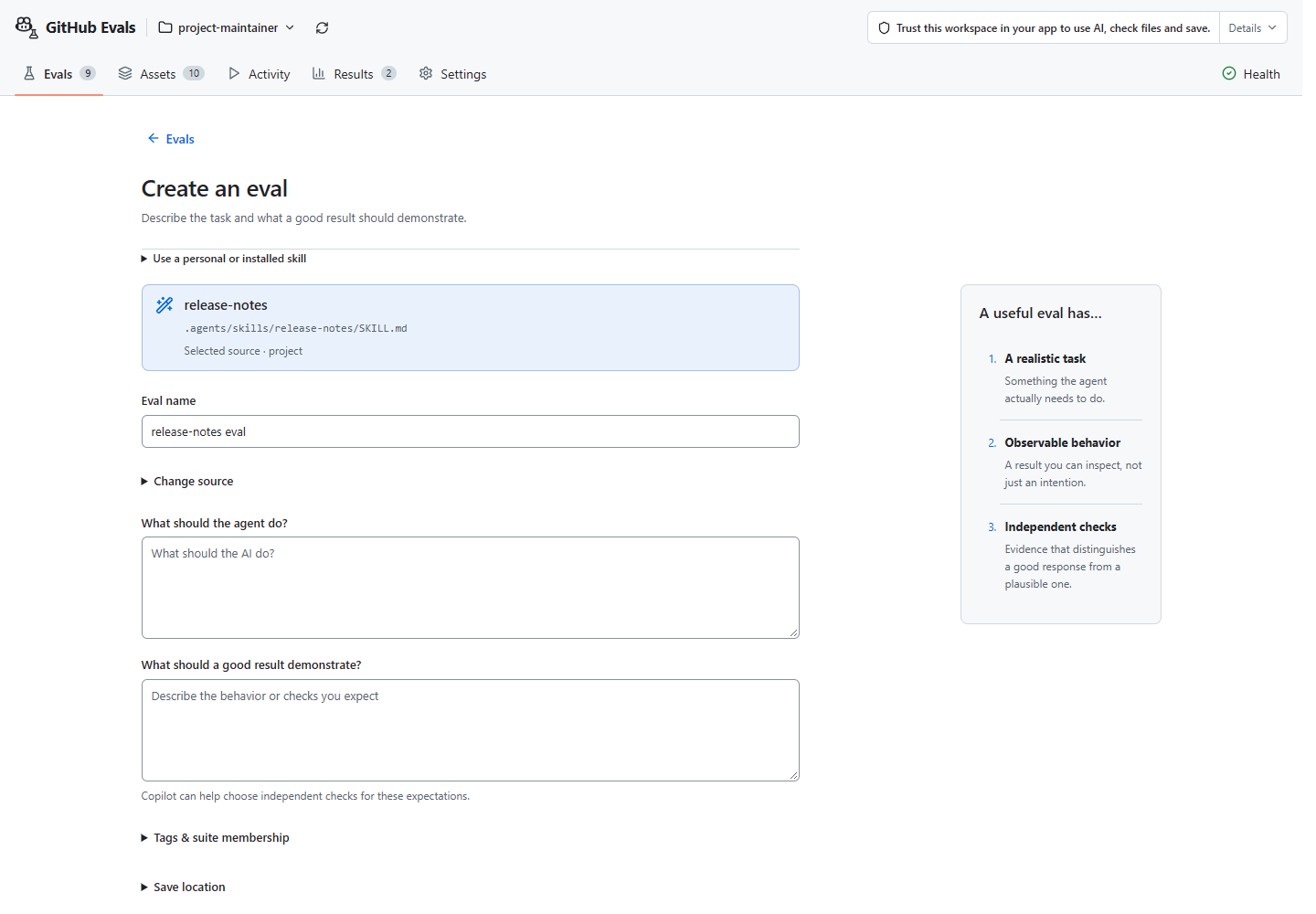
Choose your app to see how to start. Start with the first-eval guide for the general steps.
Save a separate version
Start from the original eval and a specific missed mistake. Review and save separate files; keep the original. Saving a new version does not prove it is better. Asking for a draft does not give permission to save.
Stay in the Improve conversation linked to the original eval, not Canvas’s inline Create panel. Follow the walkthrough and save/recovery rules.
In supported Canvas hosts, select the original eval, describe your change, and choose Send to Copilot. Improve keeps the original and asks only questions that change cases or checks. Existing answers and declined suggestions stay in effect.
Finish review and saving in conversation. Canvas keeps a read-only snapshot; closing it doesn’t cancel work, and reopening it doesn’t resend. After saving, optionally View saved eval in Canvas where supported. This opens the saved candidate, not an unsaved draft, and never runs it.
If the asset needs fixing instead
If the check caught a wrong answer, ask to improve the skill or agent or run
/eval improve <skill-or-agent> in CLI or the App to choose focus areas and
guide the loop.
Keep comparisons fair
An easier check can raise a score without improving AI work. Changed checks need the same answers; changed tasks need controlled new runs.