
Run
Review the files, model and tools before approving execution.
Choose your app
 Run in Copilot CLI
Select a complete saved eval and inputs; review model, tools and limits.
Terminal command
copilot -p "Use the run skill from the eval Plugin. Use this saved eval to prepare a Run plan. Show the files, runner, model, tools and limits for this run. Wait for my separate execution approval. Do not start it from this request."- Open the right place
Start in your project with the packaged approval tools or an installed compatible CLI.
Set up Copilot CLI - Start Run
Include the saved eval's path.
- Review what happens next
Preparing is not starting. Use your app's separate execution approval.
Stop if a required check or approval is unavailable. Do not bypass a refusal with terminal commands.
Read run approval and stopping rules Run in VS Code
Select a complete saved eval and inputs; review model, tools and limits.
Copilot Chat skill request
Use the run skill from the eval Plugin. Use this saved eval to prepare a Run plan.
Show the files, runner, model, tools and limits for this run.
Wait for my separate execution approval. Do not start it from this request.- Open the right place
For native controls, use the extension and run GitHub Copilot Evals: Open Evals Canvas in your local project. It includes the Plugin.
Set up VS Code - Start Run
Open a saved eval in Evals and choose Review & run to prepare its plan. Queue Eval sends it to Activity for later review. Execution needs separate approval.
- Review what happens next
Preparing is not starting. Use your app's separate execution approval.
Stop if a required check or approval is unavailable. Do not bypass a refusal with terminal commands.
Read run approval and stopping rules Run in GitHub Copilot App
Select a complete saved eval and inputs; review model, tools and limits.
Prompt to paste into the Canvas Copilot conversation
Use this saved eval to prepare a Run plan.
Show the files, runner, model, tools and limits for this run.
Wait for my separate execution approval. Do not start it from this request.- Open the right place
Open Evals Canvas in the intended GitHub Copilot App project session; confirm its selected folder.
Set up GitHub Copilot App - Start Run
Open a saved eval in Evals and choose Review & run to prepare its plan. Queue Eval sends it to Activity for later review. Execution needs separate approval.
- Review what happens next
Preparing is not starting. Use your app's separate execution approval.
Stop if a required check or approval is unavailable. Do not bypass a refusal with terminal commands.
Read run approval and stopping rulesRun in VS Code Agents
Select a complete saved eval and inputs; review model, tools and limits.
Prompt to paste into your VS Code Agents Copilot conversation
Use this saved eval to prepare a Run plan.
Show the files, runner, model, tools and limits for this run.
Wait for my separate execution approval. Do not start it from this request.- Open the right place
Open your prepared project in VS Code Agents with its supported Plugin/Canvas setup.
Set up VS Code Agents - Start Run
Select the saved eval and send the request in VS Code Agents's Copilot conversation; use that app's approval controls.
- Review what happens next
Preparing is not starting. Use your app's separate execution approval.
Stop if a required check or approval is unavailable. Do not bypass a refusal with terminal commands.
Read run approval and stopping rules Run in Visual Studio
Select a complete saved eval and inputs; review model, tools and limits.
Visual Studio Copilot Chat command
/eval-run Use this saved eval to prepare a Run plan. Show the files, runner, model, tools and limits for this run. Wait for my separate execution approval. Do not start it from this request.- Open the right place
Open your local solution or folder in Visual Studio and open View > Other Windows > GitHub Copilot Evals (or enter /eval-canvas in Copilot Chat).
Set up Visual Studio - Start Run
Open a saved eval in Evals and choose Review & run to prepare its plan. Queue Eval sends it to Activity for later review. Execution needs separate approval.
- Review what happens next
Preparing is not starting. Use your app's separate execution approval.
Stop if a required check or approval is unavailable. Do not bypass a refusal with terminal commands.
Read run approval and stopping rules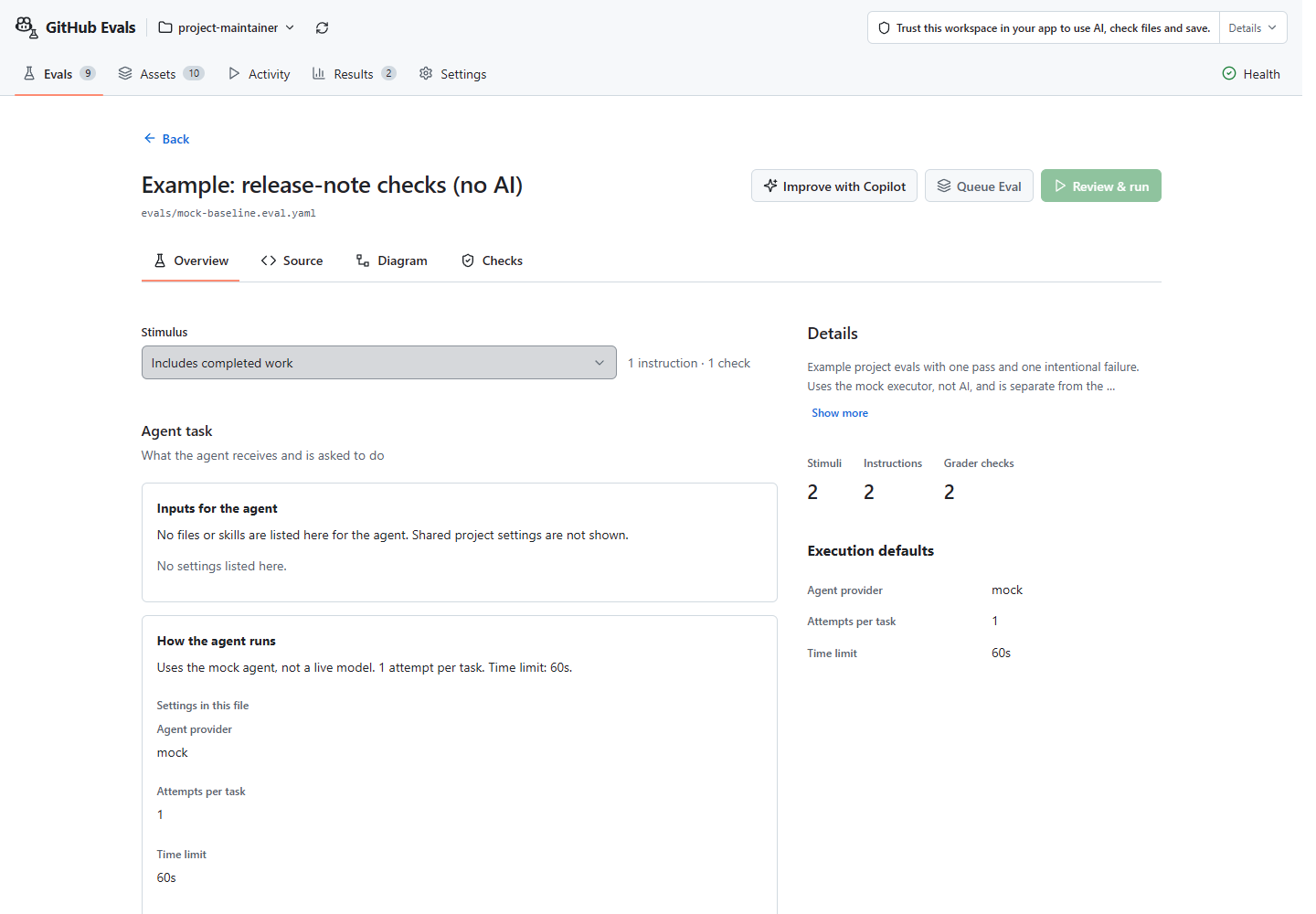
Choose your app to see how to start. Start with the first-eval guide for the general steps.
Execute the selected eval
Choose an eval and inspect its plan. Raw output stays out of Evals history.
Timestamped reports go in a unique folder under .vally.yaml’s paths.results
or the project-local default.
Review the run summary
Inspect planned effects before approving. Understand summaries and historical costs.
In Canvas, Review & run starts disclosed local checks and prepares the plan,
then asks once about costs and execution in the App conversation or VS Code dialog.
No extra Canvas checkbox is needed.
Native App/CLI /eval run and VS Code native Run also prepare first and
ask once after opening the plan review.
Standalone MCP requires a host form; larger reviews may span pages.
If preparation fails, the cost-confirmation step is not reached and execution has not started. Diagnose the setup or validation error. Choosing an eval, saving it, or viewing Details never approves execution.
Know the limits
Stop if required limits cannot be enforced. Paid models can cost money; total cost and internal model requests are not capped. The temporary folder is not a sandbox. Evals must not silently retry or switch models. Completed does not mean passed.
Trusted full-engine runs
Full-engine runs need their own review and approval. Setup commands and checks can execute code or spend money even when the eval uses a mock response. Stop cannot undo remote writes, and strict comparison is unavailable. Full-engine details.
Cancel or stop a run
Cancel approval before execution; Stop this run affects only this run. Keep failed and cancelled results; do not start the same run twice.
Set up CI after the eval is useful locally · Understand results