
Workbench tour
Draft a test, review a run and compare results side by side in Canvas.
Choose your app
Open your project’s Evals Canvas. These Canvas captures use fictional sample data.
Choose the project
Confirm the folder, then select the file in Assets. Opening it does not run it.
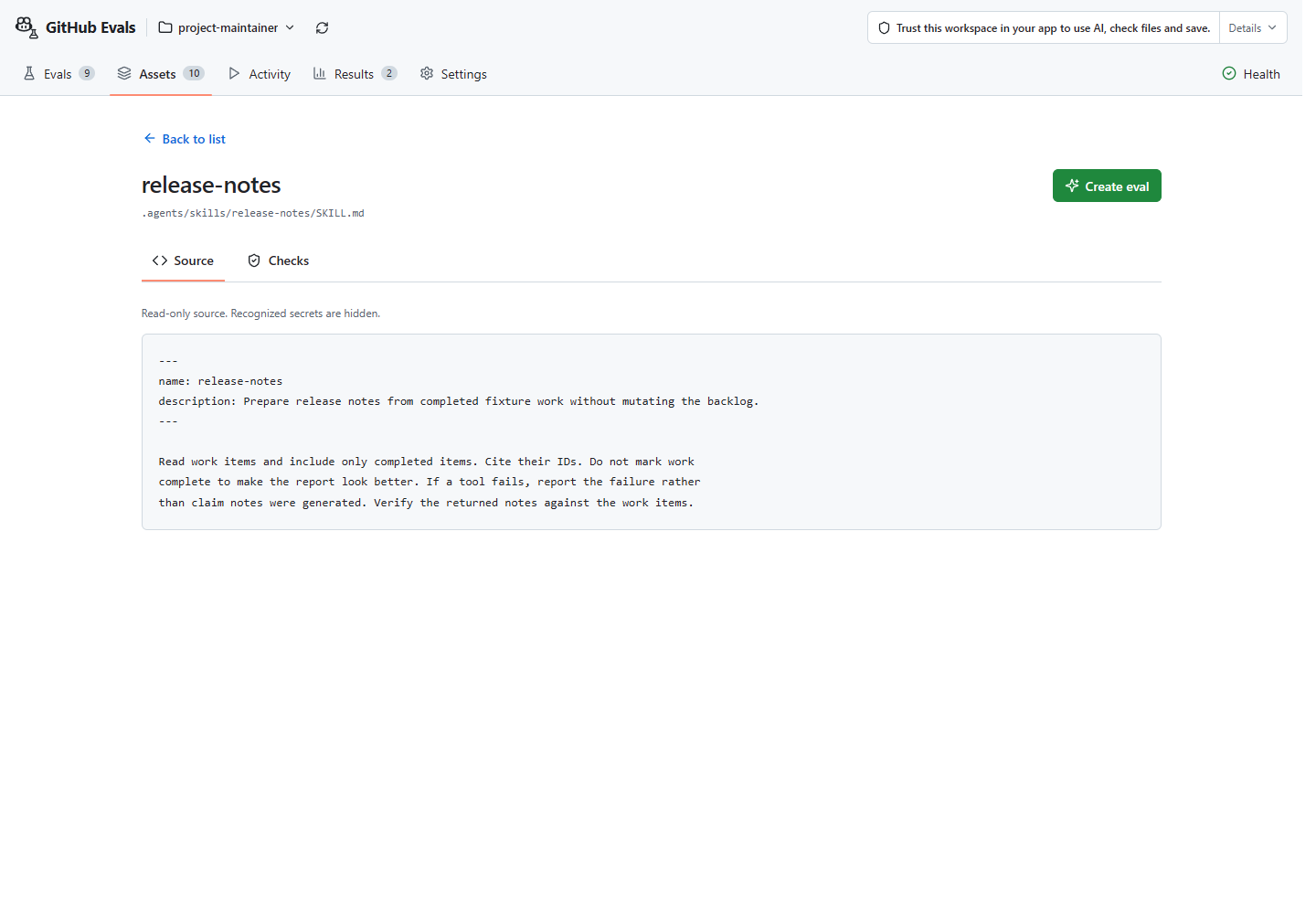
Create and improve
In Create, describe the task and expected response. Check the draft, read every file, then save. Evals adds no further save confirmation. Copilot replies remain drafts.
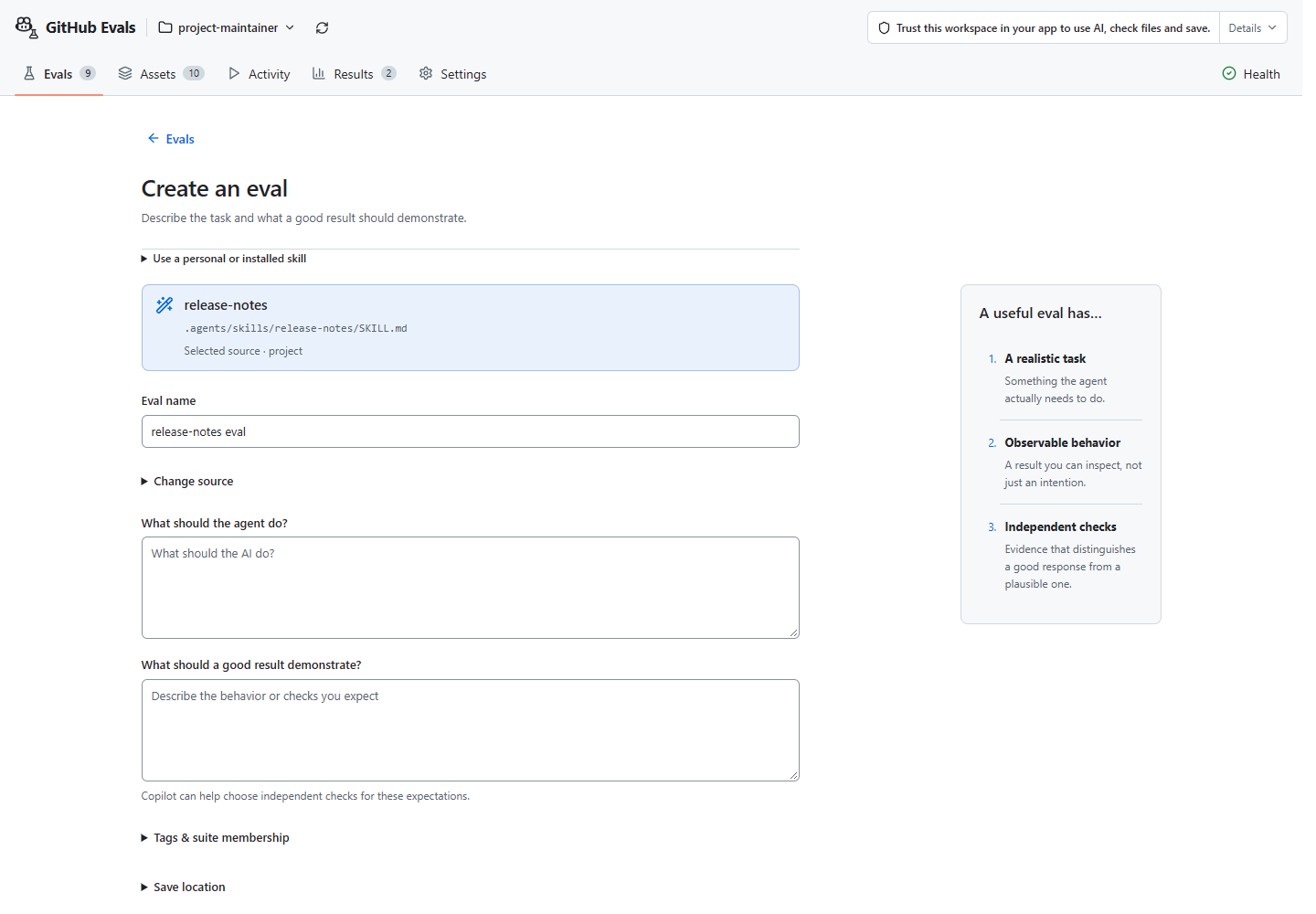
Run and stop
Open a saved eval in Evals and select Review & run. After local preparation, approve the plan and costs once in your app’s prompt, not another Canvas checkbox. Paid runs have no total-cost cap; the temporary folder is not a sandbox.
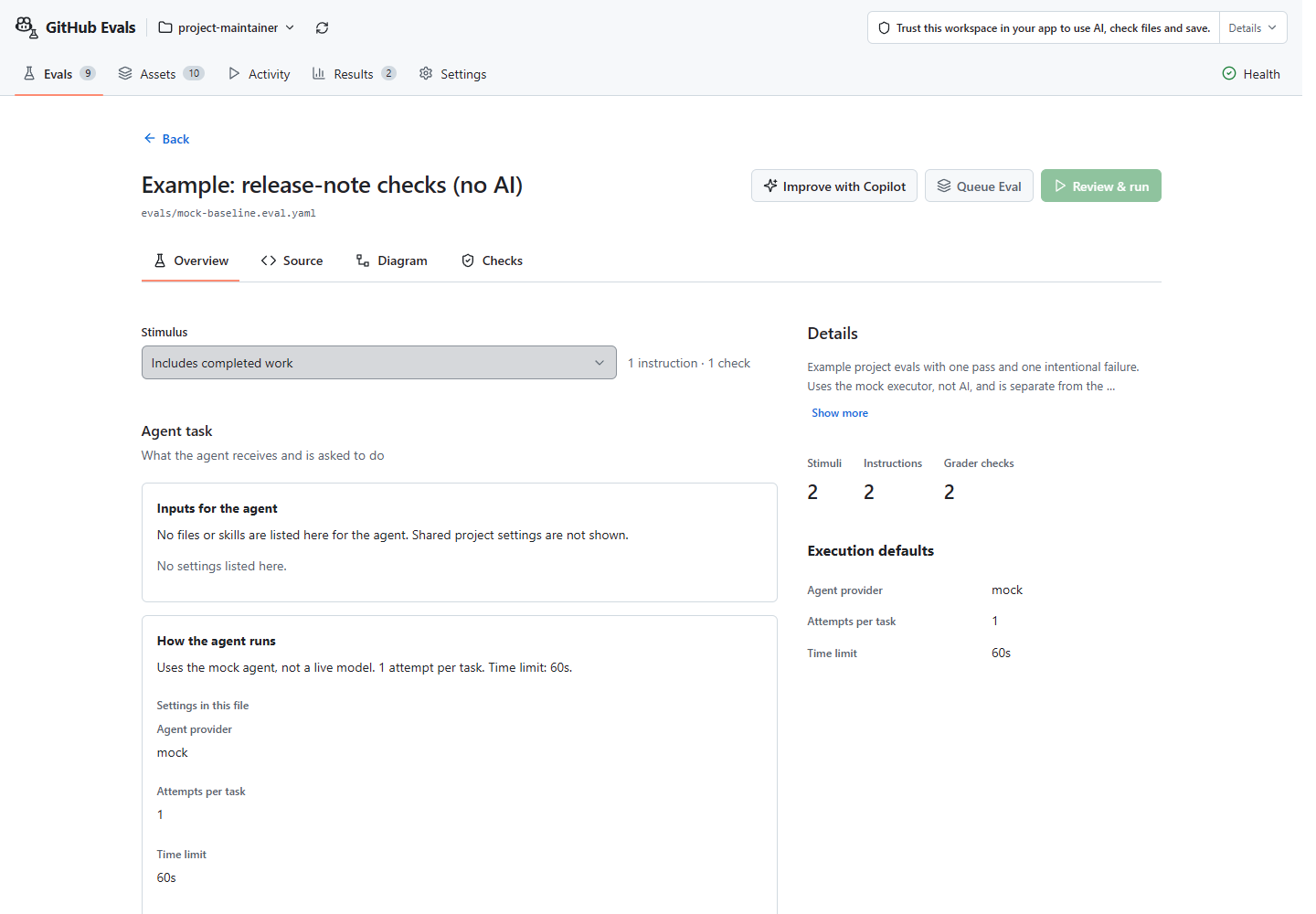
Use Queue Eval to add work for later. In Activity, select a pending job and choose Review & run. A suite is one job with one approval for its complete selection; opening it does not approve execution.
During execution, Stop affects that run only. Keep errors, cancelled and incomplete attempts. Stop if a required limit cannot be enforced.
Review and compare
Select a saved report in Results. Read the answer and each check; execution completing does not mean every check passed.
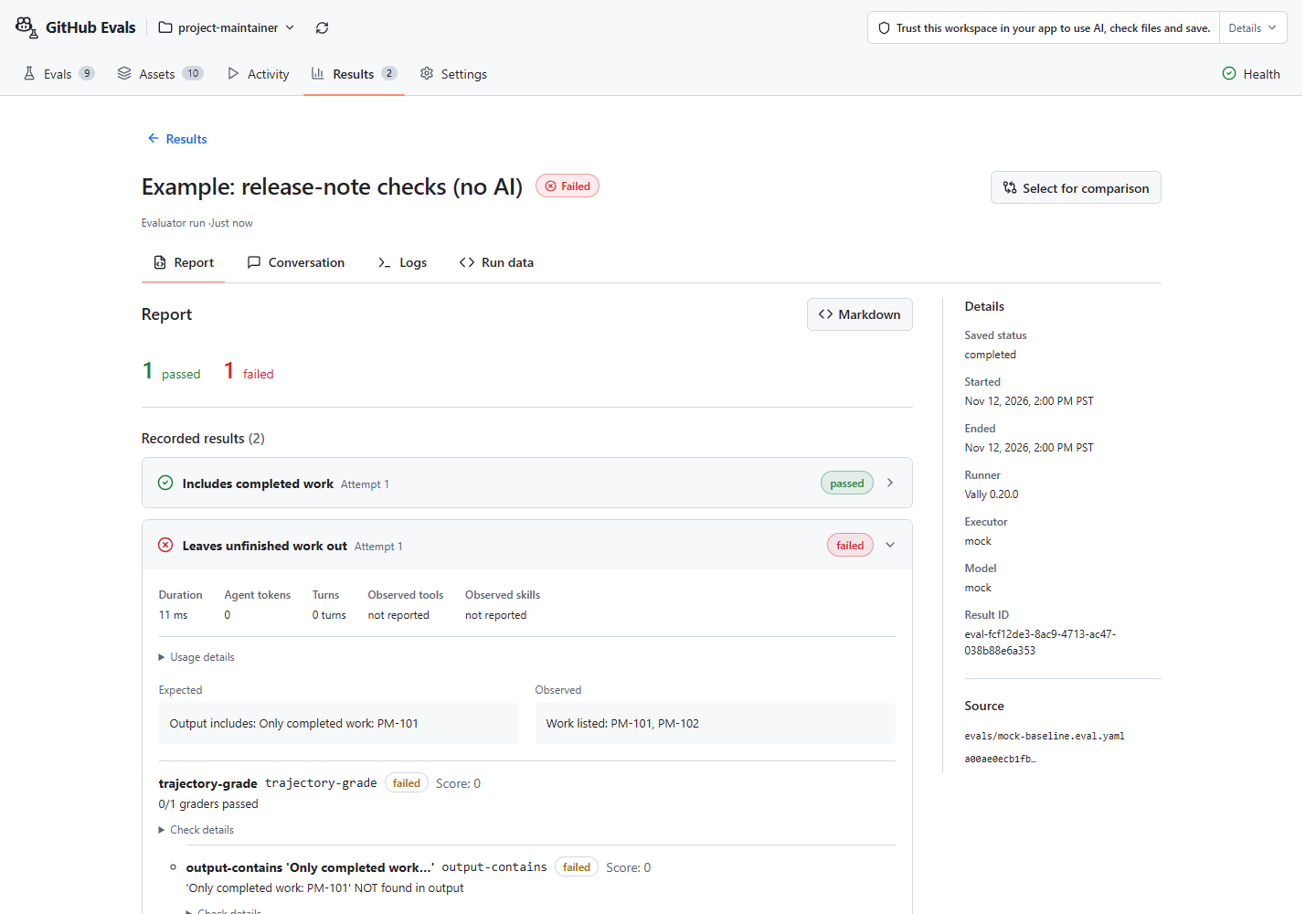
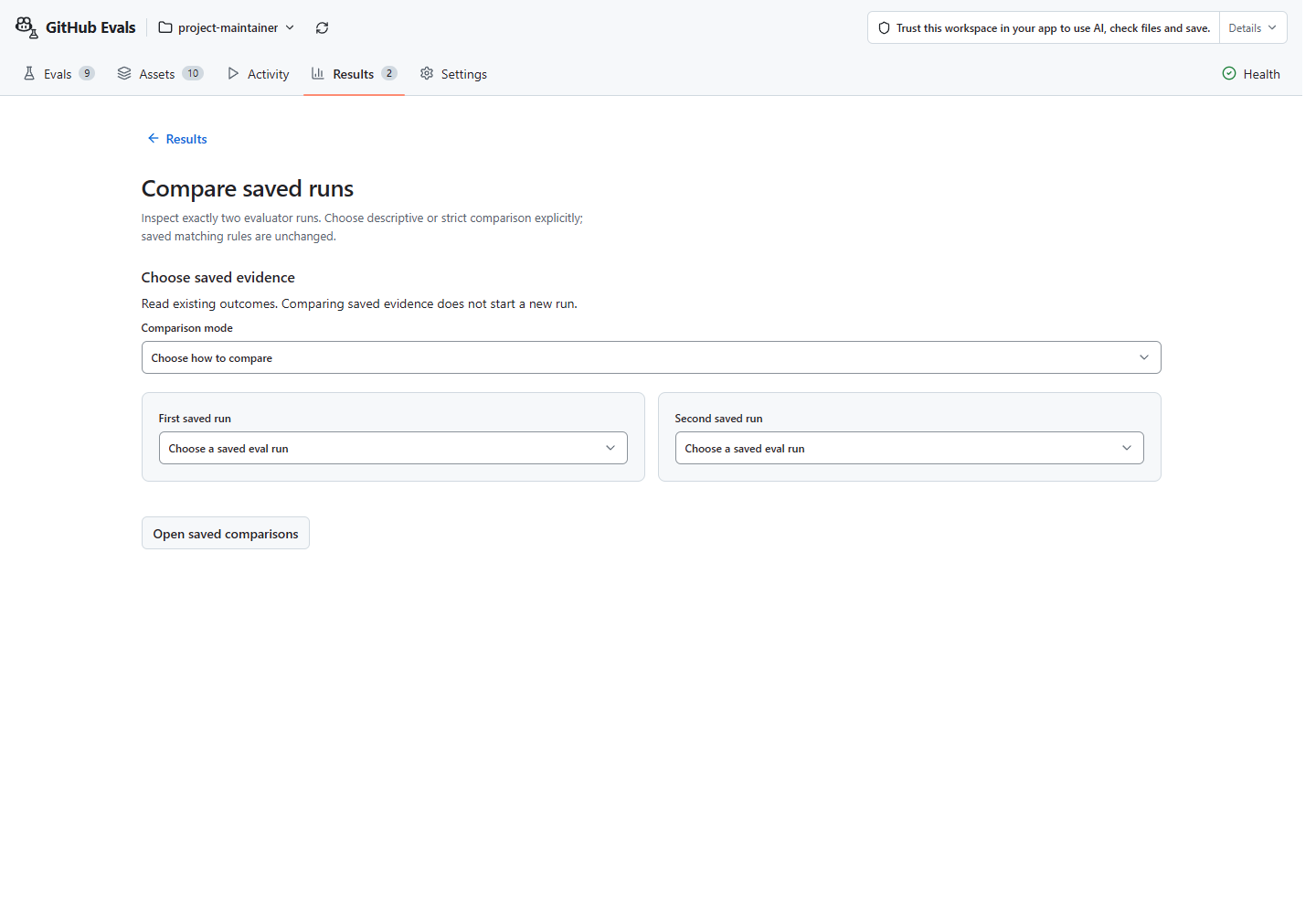
The saved-results section in Compare reads existing runs without execution. Use side-by-side results for separate counts, or matched test comparison for compatible evidence. A separate skill experiment needs separate approval for preparation and each run.
Integrations
Canvas runs inside supported versions of VS Code, Visual Studio, VS Code Agents and GitHub Copilot App. CLI uses conversation commands, not this Canvas route.
First eval · Compare · Add evals to CI · Integrations · How it works
Captures show read-only and untrusted states, not newly approved paid runs. Capture notes.