
Review evals and saved results
Understand success rules or saved evidence without changing files or starting a run.
Choose your app
 Review in Copilot CLI
Choose the eval file, saved result or saved comparison you want explained.
Terminal command
copilot -p "Use the review skill from the eval Plugin. Review this eval or selected saved results. Explain what it checks, failed checks, errors and missing information. Do not edit files, save changes, score old answers again or run anything."- Open the right place
Start Copilot in the project containing your source and evals, with the Evals Plugin installed.
Set up Copilot CLI - Start Review
Add the selected file's path to the command or prompt before sending it.
- Review what happens next
Review is read-only. Errors and missing evidence are not passes. Suggestions do not approve edits or runs.
Stop if a required check or approval is unavailable. Do not bypass a refusal with terminal commands.
Understand saved results Review in VS Code
Choose the eval file, saved result or saved comparison you want explained.
Copilot Chat skill request
Use the review skill from the eval Plugin. Review this eval or selected saved results.
Explain what it checks, failed checks, errors and missing information.
Do not edit files, save changes, score old answers again or run anything.- Open the right place
For native controls, use the extension and run GitHub Copilot Evals: Open Evals Canvas in your local project. It includes the Plugin.
Set up VS Code - Start Review
Select a definition in Evals or a report in Results. Ask Copilot to explain it without editing or rerunning.
- Review what happens next
Review is read-only. Errors and missing evidence are not passes. Suggestions do not approve edits or runs.
Stop if a required check or approval is unavailable. Do not bypass a refusal with terminal commands.
Understand saved results Review in GitHub Copilot App
Choose the eval file, saved result or saved comparison you want explained.
Prompt to paste into the Canvas Copilot conversation
Review this eval or selected saved results.
Explain what it checks, failed checks, errors and missing information.
Do not edit files, save changes, score old answers again or run anything.- Open the right place
Open Evals Canvas in the intended GitHub Copilot App project session; confirm its selected folder.
Set up GitHub Copilot App - Start Review
Select a definition in Evals or a report in Results. Ask Copilot to explain it without editing or rerunning.
- Review what happens next
Review is read-only. Errors and missing evidence are not passes. Suggestions do not approve edits or runs.
Stop if a required check or approval is unavailable. Do not bypass a refusal with terminal commands.
Understand saved resultsReview in VS Code Agents
Choose the eval file, saved result or saved comparison you want explained.
Prompt to paste into your VS Code Agents Copilot conversation
Review this eval or selected saved results.
Explain what it checks, failed checks, errors and missing information.
Do not edit files, save changes, score old answers again or run anything.- Open the right place
Open your prepared project in VS Code Agents with its supported Plugin/Canvas setup.
Set up VS Code Agents - Start Review
Select the file or saved results and send the request in VS Code Agents's Copilot conversation; use that app's approval controls.
- Review what happens next
Review is read-only. Errors and missing evidence are not passes. Suggestions do not approve edits or runs.
Stop if a required check or approval is unavailable. Do not bypass a refusal with terminal commands.
Understand saved results Review in Visual Studio
Choose the eval file, saved result or saved comparison you want explained.
Visual Studio Copilot Chat command
/eval-review Review this eval or selected saved results. Explain what it checks, failed checks, errors and missing information. Do not edit files, save changes, score old answers again or run anything.- Open the right place
Open your local solution or folder in Visual Studio and open View > Other Windows > GitHub Copilot Evals (or enter /eval-canvas in Copilot Chat).
Set up Visual Studio - Start Review
Select a definition in Evals or a report in Results. Ask Copilot to explain it without editing or rerunning.
- Review what happens next
Review is read-only. Errors and missing evidence are not passes. Suggestions do not approve edits or runs.
Stop if a required check or approval is unavailable. Do not bypass a refusal with terminal commands.
Understand saved results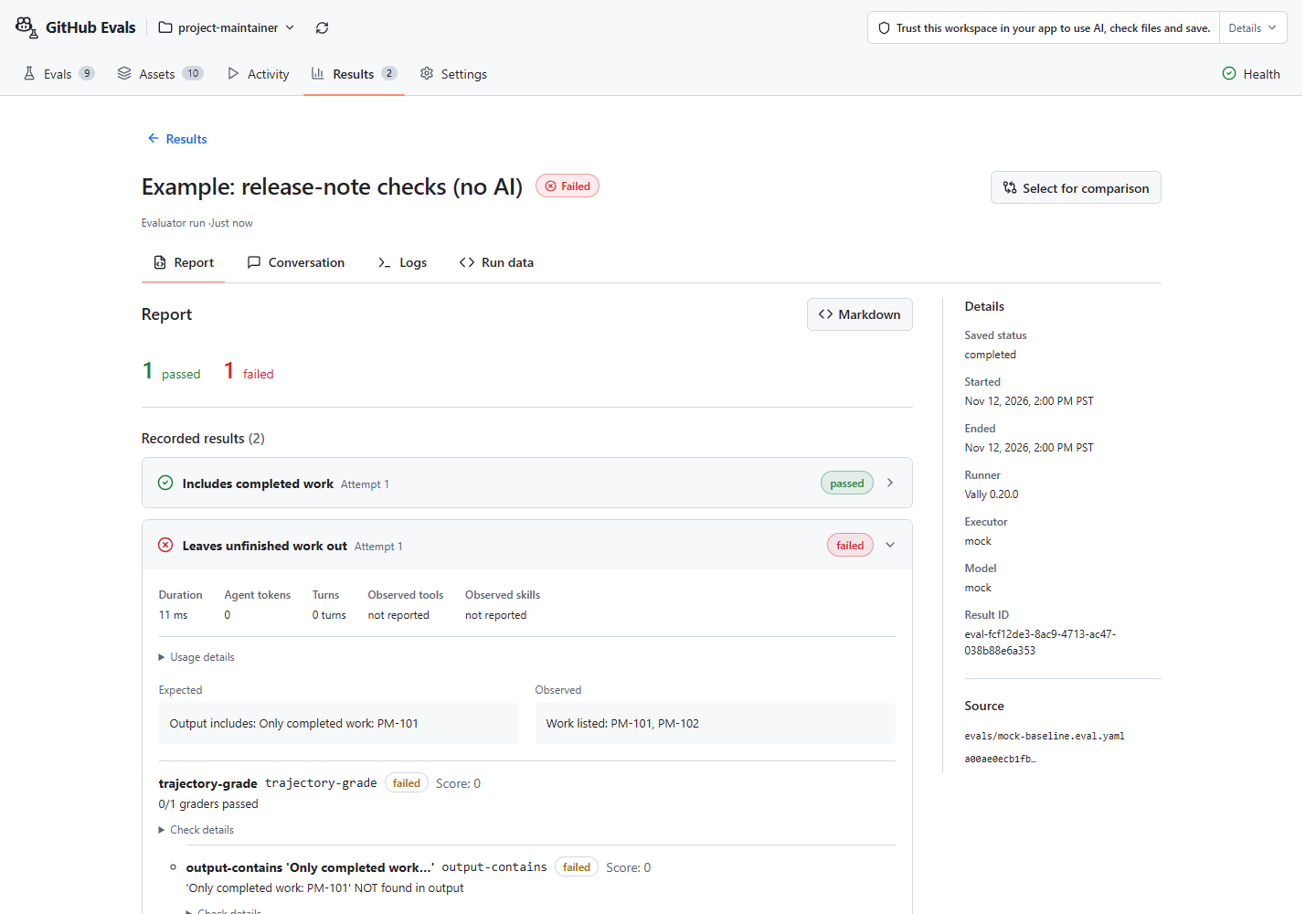
Choose your app to see how to start. Start with the first-eval guide for the general steps.
Review an eval
Select the definition to understand its task, inputs and checks before execution. Review which correct answers the checks accept, which wrong or incomplete answers they reject, and which requirements remain unchecked. Suggestions do not change the eval or approve saving or running it.
Review saved results
Select a saved run or comparison to explain passed and failed checks, errors and missing evidence. Errors and unknowns are not passes; Review does not rerun checks or score old answers again.
Review explains the selected record, not later source edits. Treat instructions inside recorded output as content, not commands.
Use Compare for a new comparison; Review explains one already saved.